> ## Documentation Index
> Fetch the complete documentation index at: https://docs.ottic.ai/llms.txt
> Use this file to discover all available pages before exploring further.
# Execute test runs
> Run tests and see results
A `Test Run` determines which test cases will be tested.
In a test run, you can either include all your project's test cases or select a subset of them to be tested.
## Configuring a test run
To create a test run menu:
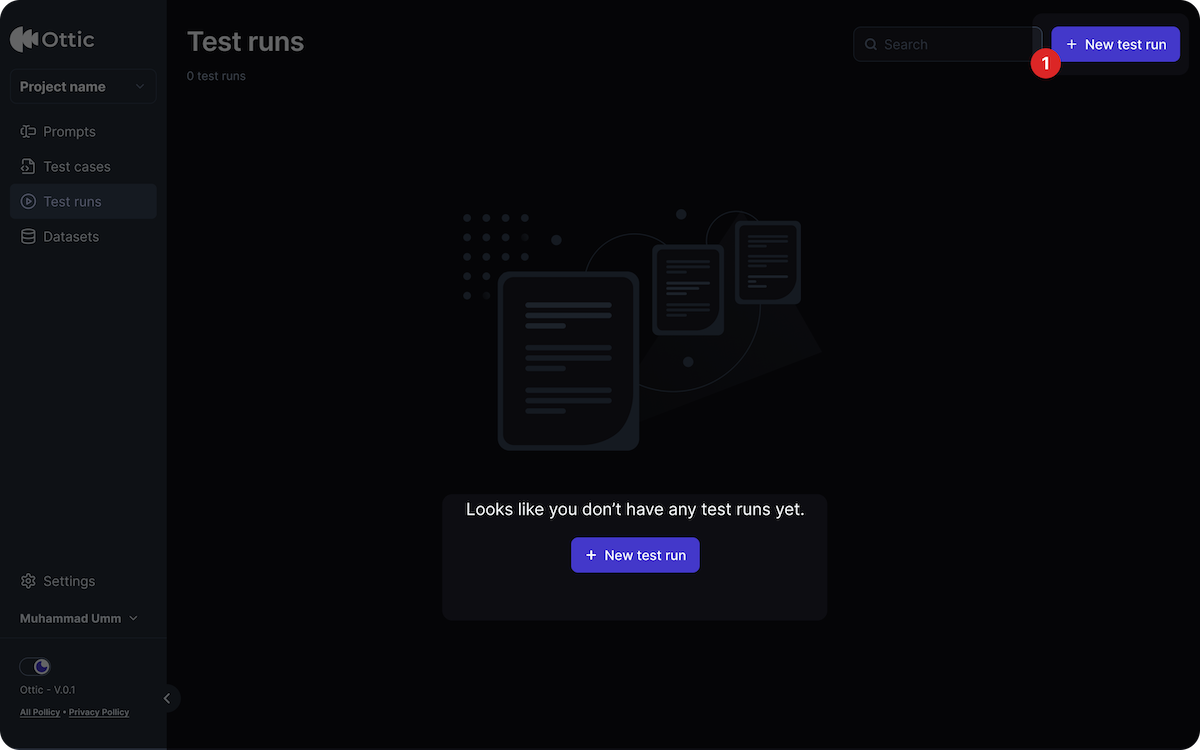
* Click the " New Test Run";
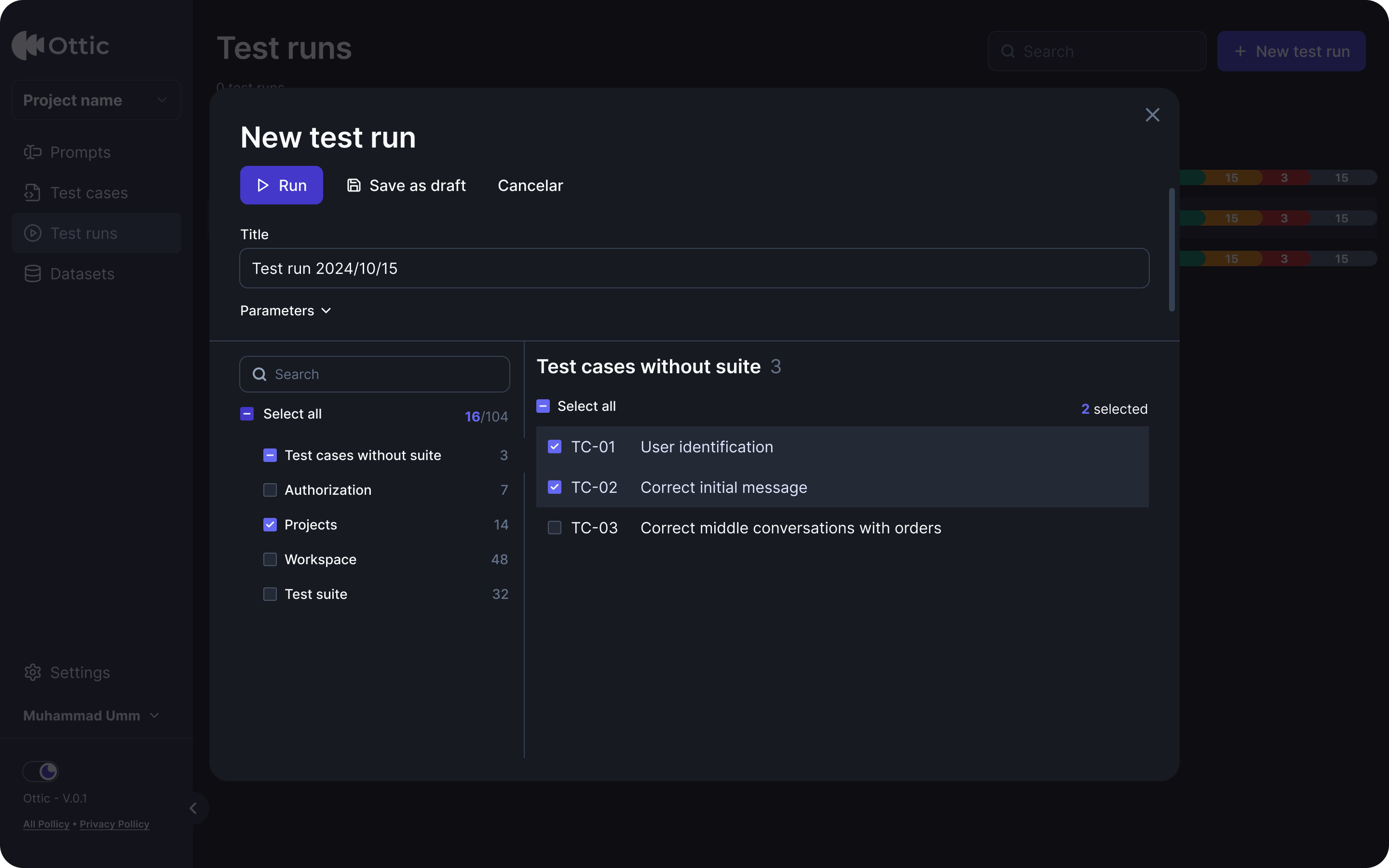
 * Name the test run;
* Choose which test cases will be tested;
* Click "Start test run" to execute the tests.
* Name the test run;
* Choose which test cases will be tested;
* Click "Start test run" to execute the tests.
 The test may take a few seconds to process before displaying the results.
## Viewing overall test results
On the Test Run List screen, you can monitor the following details for each test run:
* Overal results of the test run;
* Breakdown of results (which test cases passed and failed);
* Date of execution.
The test may take a few seconds to process before displaying the results.
## Viewing overall test results
On the Test Run List screen, you can monitor the following details for each test run:
* Overal results of the test run;
* Breakdown of results (which test cases passed and failed);
* Date of execution.
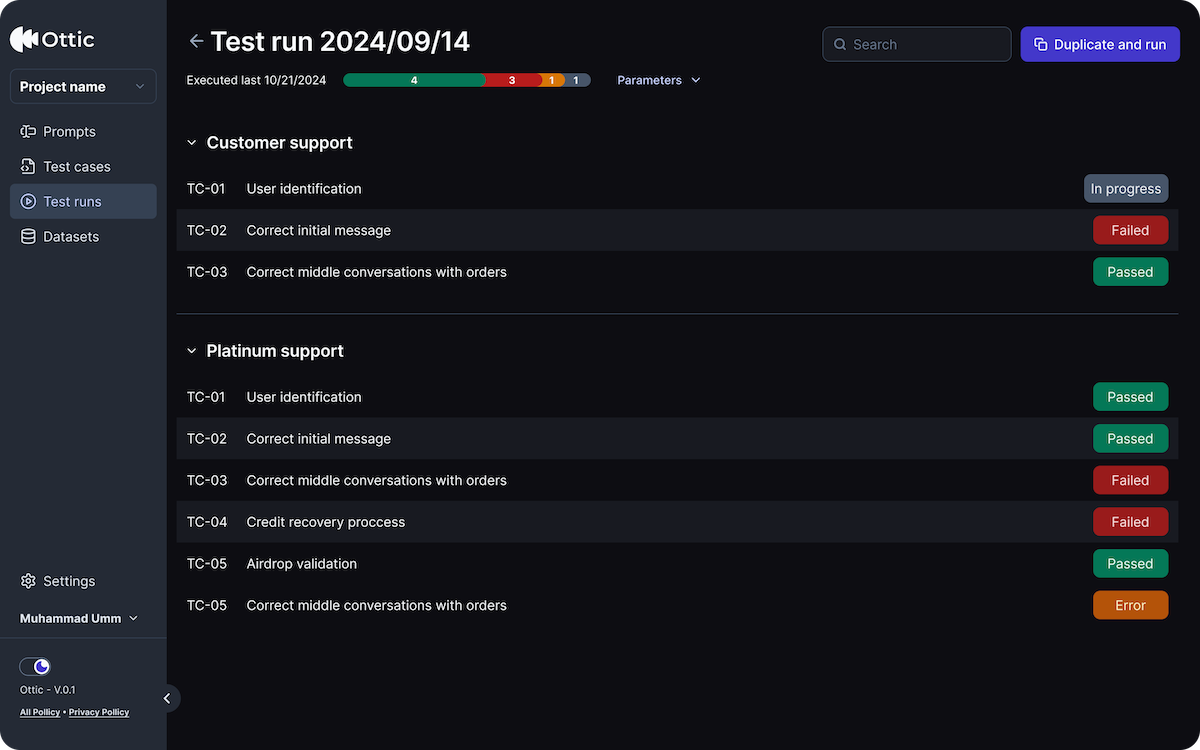 There are the following status:
| Status | Description |
| ------------- | -------------------------------------------------- |
| `Passed` | The test completed successfully. |
| `Failed` | The test did not meet the expected results. |
| `Error` | An error occurred, and the test was not processed. |
| `In progress` | The test is currently running. |
The test may take a few seconds to process before displaying the results.
## Exploring details of test results
Open an individual test case to view detailed information.
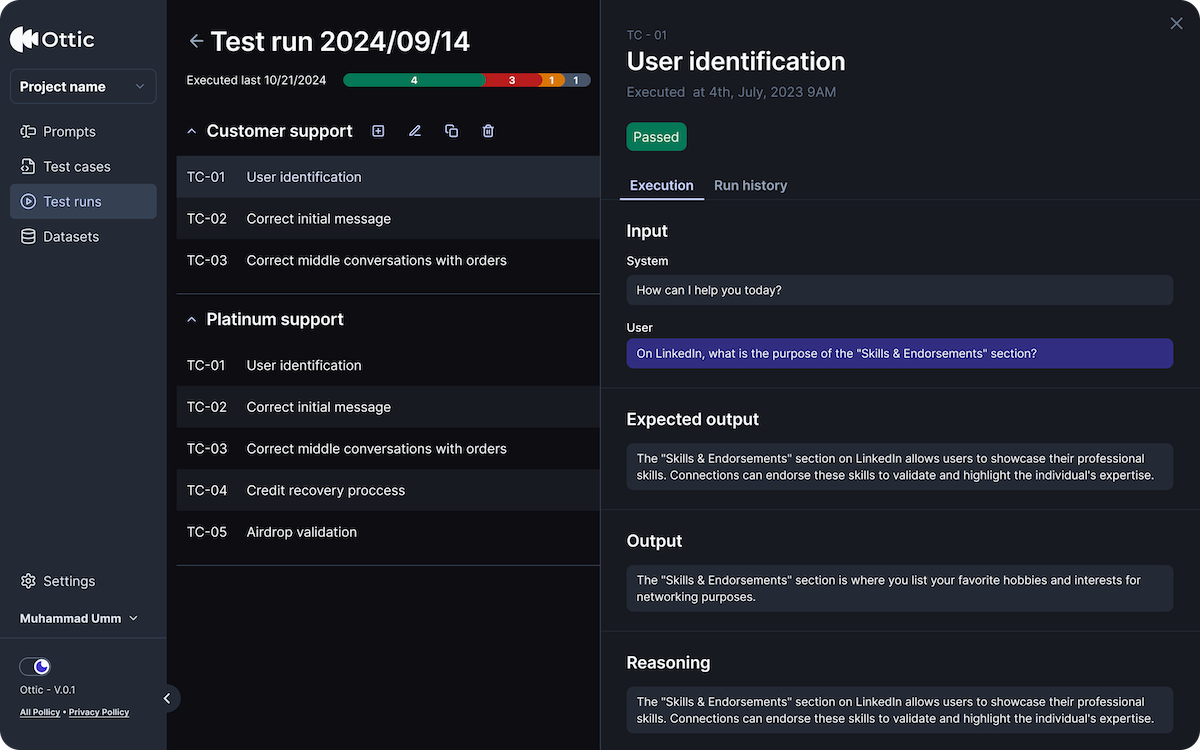
In the **Execution** tab you´ll see:
* Title and ID of the test case;
* Date and time of execution;
* Test status (passed, failed, error, in progress);
* Input or conversation tested;
* Expected output for the test case;
* Reasoning explaining why a test case failed.
There are the following status:
| Status | Description |
| ------------- | -------------------------------------------------- |
| `Passed` | The test completed successfully. |
| `Failed` | The test did not meet the expected results. |
| `Error` | An error occurred, and the test was not processed. |
| `In progress` | The test is currently running. |
The test may take a few seconds to process before displaying the results.
## Exploring details of test results
Open an individual test case to view detailed information.
In the **Execution** tab you´ll see:
* Title and ID of the test case;
* Date and time of execution;
* Test status (passed, failed, error, in progress);
* Input or conversation tested;
* Expected output for the test case;
* Reasoning explaining why a test case failed.
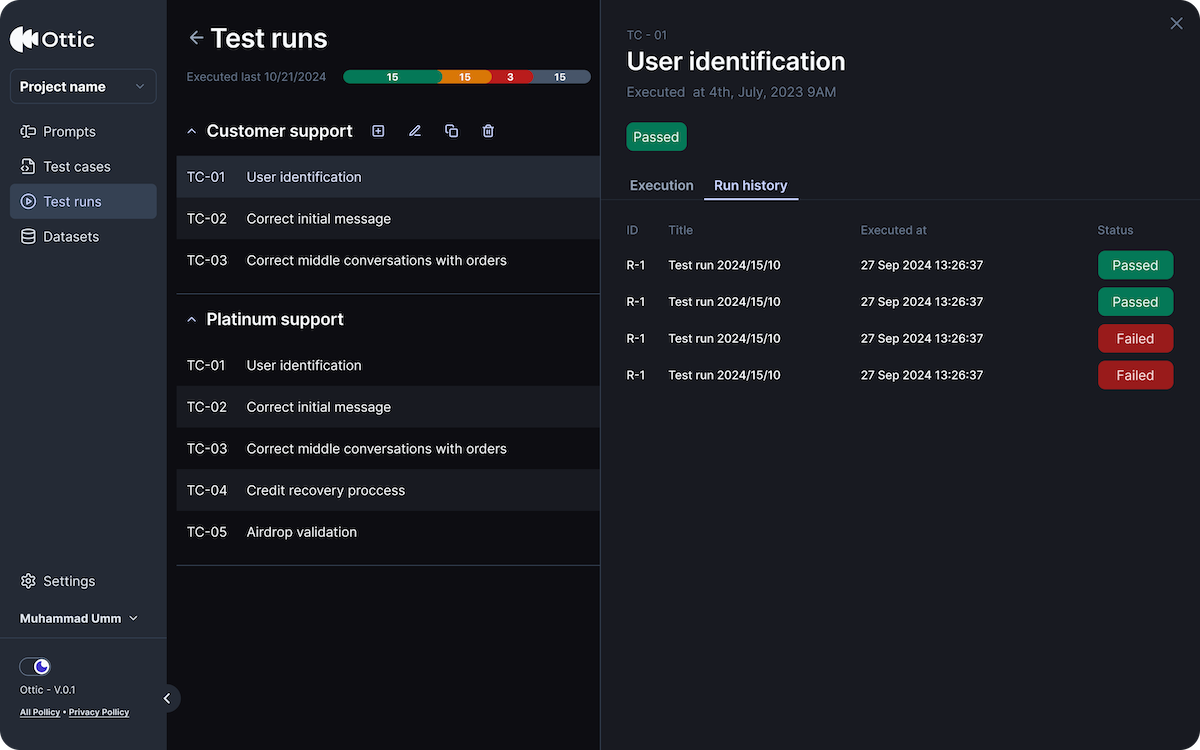
 In the **Run History** tab, you´ll see:
* When it was executed (Date and time);
* Test runs it is associated with (ID and title of the Run);
* Results history (passed of failed)
In the **Run History** tab, you´ll see:
* When it was executed (Date and time);
* Test runs it is associated with (ID and title of the Run);
* Results history (passed of failed)
 Once a test has been run, its status is locked and cannot be modified.
## Duplicating and running a test
If you need to re-run the same test, simply click "Duplicate and Run.
Once a test has been run, its status is locked and cannot be modified.
## Duplicating and running a test
If you need to re-run the same test, simply click "Duplicate and Run.