> ## Documentation Index
> Fetch the complete documentation index at: https://docs.ottic.ai/llms.txt
> Use this file to discover all available pages before exploring further.
# Write test cases
> Writing test scenarios to assess your LLM product behavior
A `test case` is a specific set of conditions that outline the actions needed to be carried out successfully by your LLM product.
Test cases can be grouped into `test suites`, which are groups of related test cases.
The `test case repository` is where you create and manage all test cases and test suites, enabling you to better organize your test strategy as you scale.
Ottic currently supports 2 types of tests:
* **LLM Test**: tests the output generated directly by the LLM.
* **Agent Test**: tests the output produced by an agent interacting with the LLM.
Ottic also supports API tests for non-deterministic systems. Sending requests to your backend API and comparing actual results with expected outcomes can be done in the tab [Agent Test](/essentials/test_case#creating-an-agent-test).
## Creating a test case
To create a test case, in the Test Cases menu:
1. **Click** "Create new test case".
2. **Name** the test case.
3. **Write** a short description for the test case
4. **Choose** a type of test (LLM Test or Agent Test).
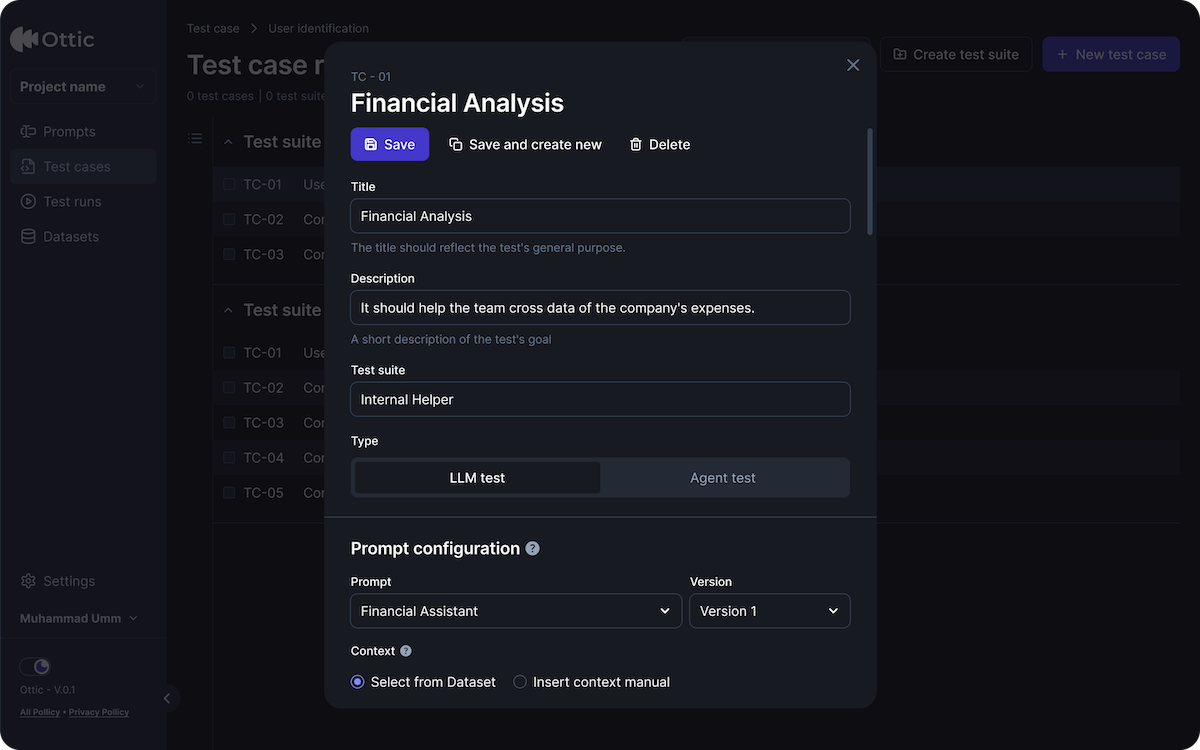 A good test case name should be clear and concise, reflecting the test's objective and scope.
### Creating a LLM test case
Choose LLM test, when creating a test case to test the LLM output.
You need to add more details to build you test case. While creating a LLM test case, you need to specify:
* The **prompt and version** you’ll be evaluating
* **Input** or conversations you´ll be testing
* The **pass criteria** containing the **expected outcomes**
IMAGES
If you're using RAG, you’ll need to provide context in the "Context" field.
### Creating an Agent test
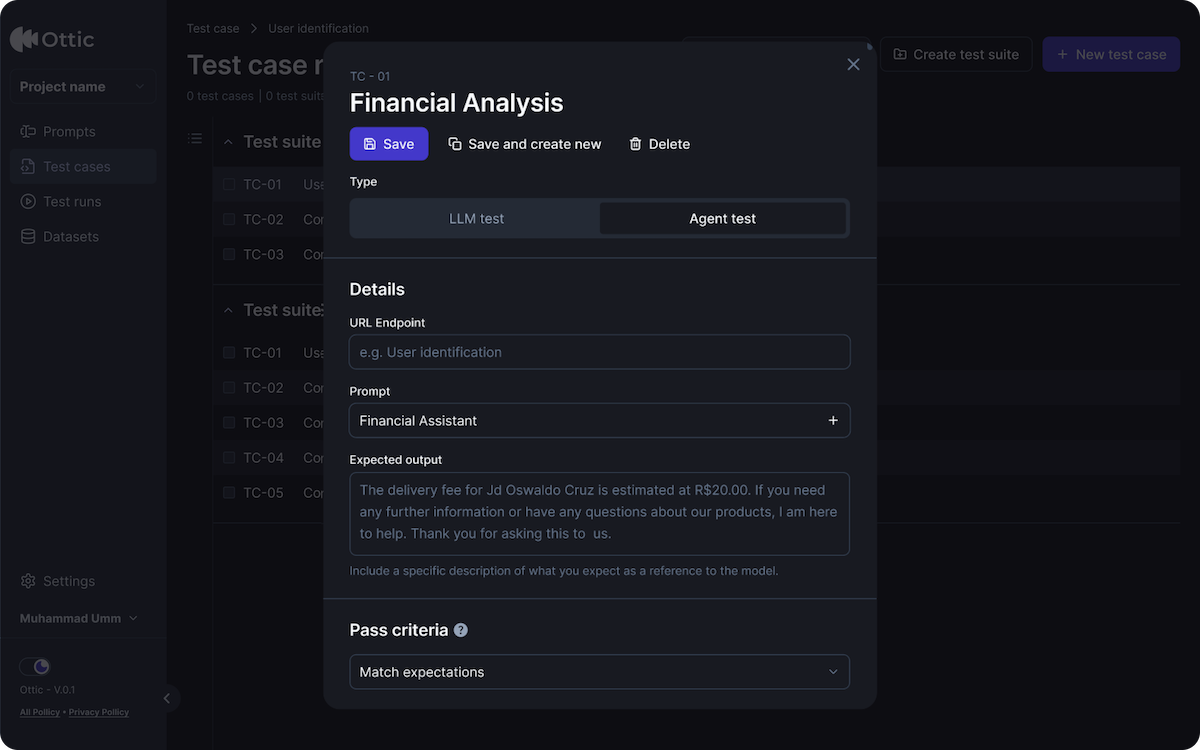
Choose Agent test, when creating a test case to test an agent workflow.
While creating an Agent test case, you need to specify:
* Agent **URL endpoint**
* **Input** or conversations you´ll be testing
* The **pass criteria** containing the **expected results**
A good test case name should be clear and concise, reflecting the test's objective and scope.
### Creating a LLM test case
Choose LLM test, when creating a test case to test the LLM output.
You need to add more details to build you test case. While creating a LLM test case, you need to specify:
* The **prompt and version** you’ll be evaluating
* **Input** or conversations you´ll be testing
* The **pass criteria** containing the **expected outcomes**
IMAGES
If you're using RAG, you’ll need to provide context in the "Context" field.
### Creating an Agent test
Choose Agent test, when creating a test case to test an agent workflow.
While creating an Agent test case, you need to specify:
* Agent **URL endpoint**
* **Input** or conversations you´ll be testing
* The **pass criteria** containing the **expected results**
 ## Editing, cloning and deleting test cases
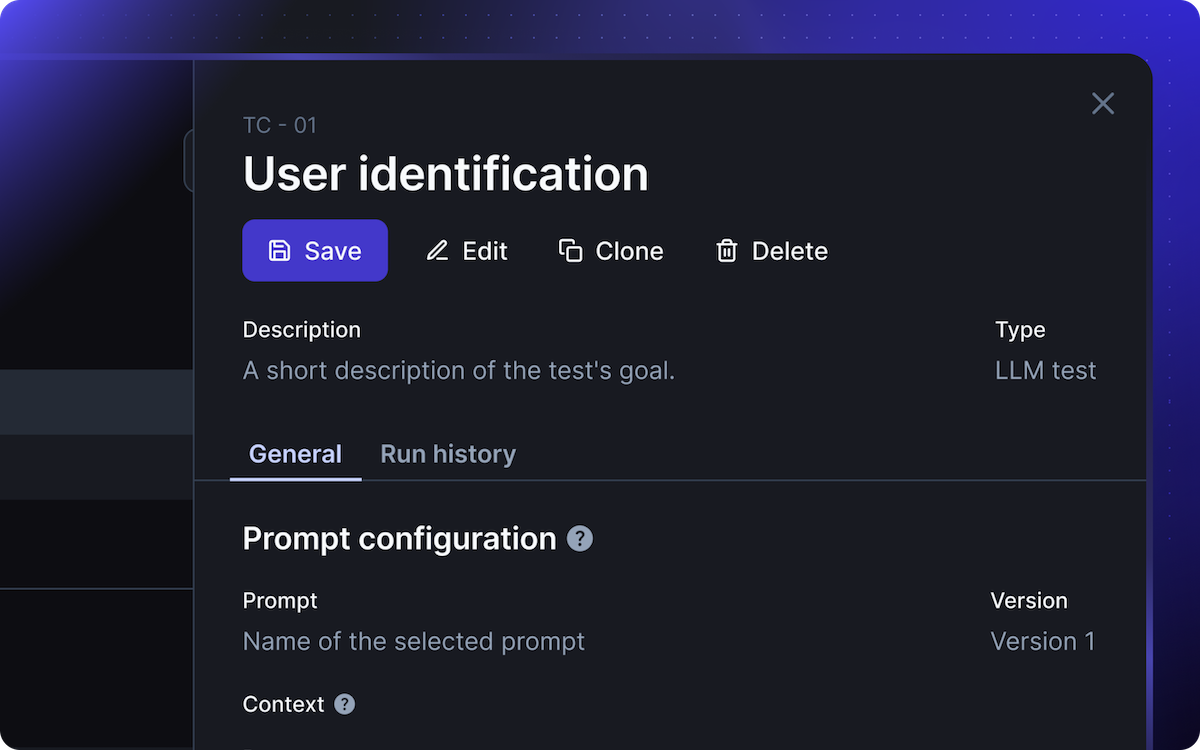
The `test case repository` contains all your test cases and its details.
Clicking a test case opens a details drawer on the left, where you can:
* **Edit** the test case
* **Clone** the test case
* **Delete** the test case
## Editing, cloning and deleting test cases
The `test case repository` contains all your test cases and its details.
Clicking a test case opens a details drawer on the left, where you can:
* **Edit** the test case
* **Clone** the test case
* **Delete** the test case
 You can drag and drop test cases to different suites and positions.
Each test case has an ID in the format `TC -XX`.This number cannot be changed.
## Viewing run history of a test case
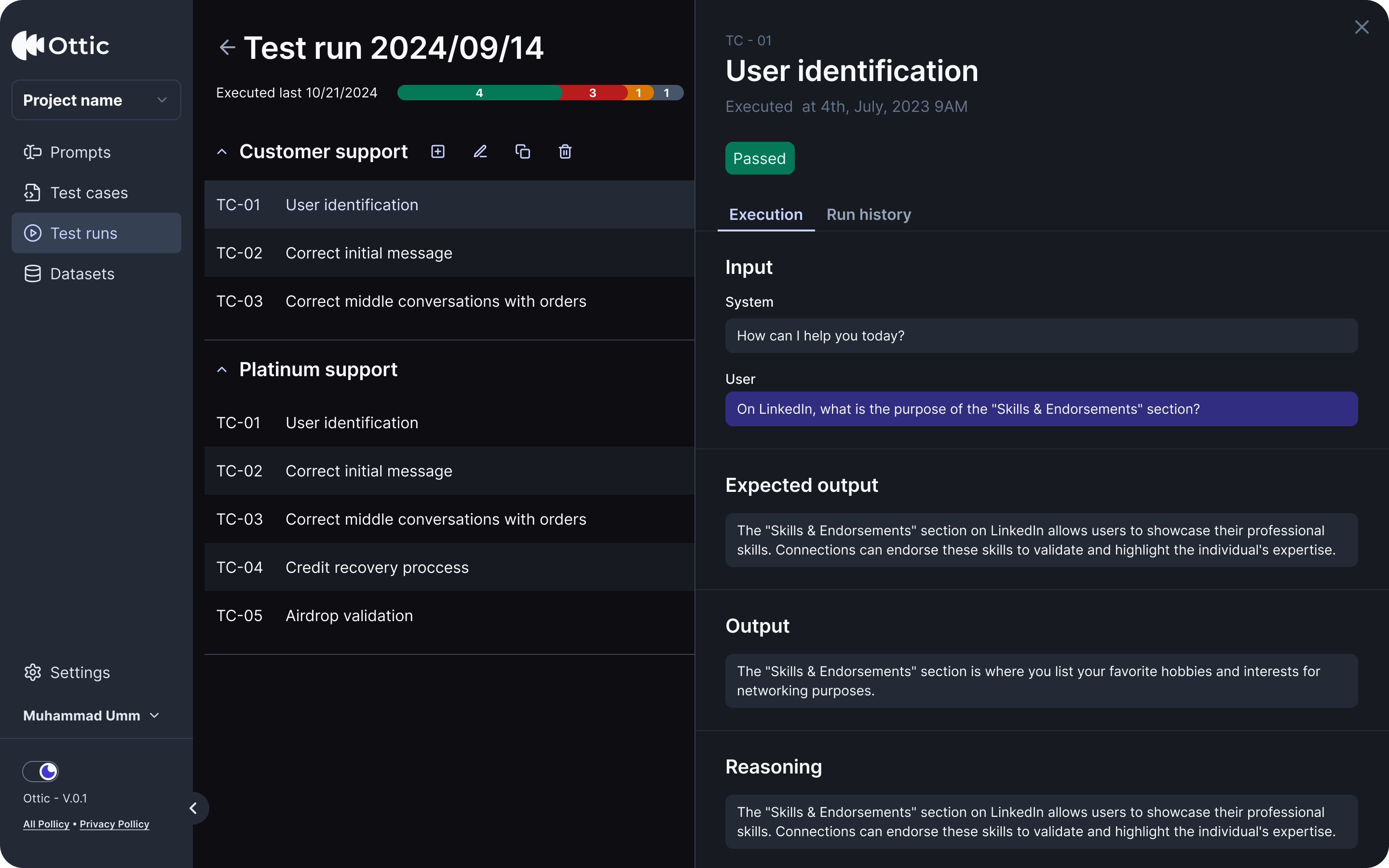
With a test case open, click the **Run history** tab to view execution details:
* When it was executed (Date and time)
* Test runs it is associated with (ID and title of the Run)
* Results history (passed of failed)
You can drag and drop test cases to different suites and positions.
Each test case has an ID in the format `TC -XX`.This number cannot be changed.
## Viewing run history of a test case
With a test case open, click the **Run history** tab to view execution details:
* When it was executed (Date and time)
* Test runs it is associated with (ID and title of the Run)
* Results history (passed of failed)
 You cannot delete results in the run history
## Organize test cases in test suites
As you test strategy scales, your number of test cases will grow.
You can use `test suites` to organize test cases.
You can drag and drop test cases to different suites and positions.
## Next steps
When you are ready to build your test cases, you can start testing them in the **Test Run** menu.
You cannot delete results in the run history
## Organize test cases in test suites
As you test strategy scales, your number of test cases will grow.
You can use `test suites` to organize test cases.
You can drag and drop test cases to different suites and positions.
## Next steps
When you are ready to build your test cases, you can start testing them in the **Test Run** menu.