> ## Documentation Index
> Fetch the complete documentation index at: https://docs.ottic.ai/llms.txt
> Use this file to discover all available pages before exploring further.
# Create prompts
> Create, manage, track and deploy to production prompt changes without changing code
The `Prompt Registry` allows you to **create, manage, and track prompt** versions, maintaining a single source of truth for prompt management.
You can also **publish** and make changes to your prompts in production without having to make any code changes.
The first time you access the Prompt Registry, it might seem a bit empty.
When you first open the Prompt Registry, you’ll be prompted to enter your OpenAI API Key. You can do that by going [here](https://platform.openai.com/account/api-keys) and copying the API key.
## Creating a Prompt
To create a prompt:
* Click on **Prompts** to open the Prompt Registry;
* Click on **"Create new prompt"**;
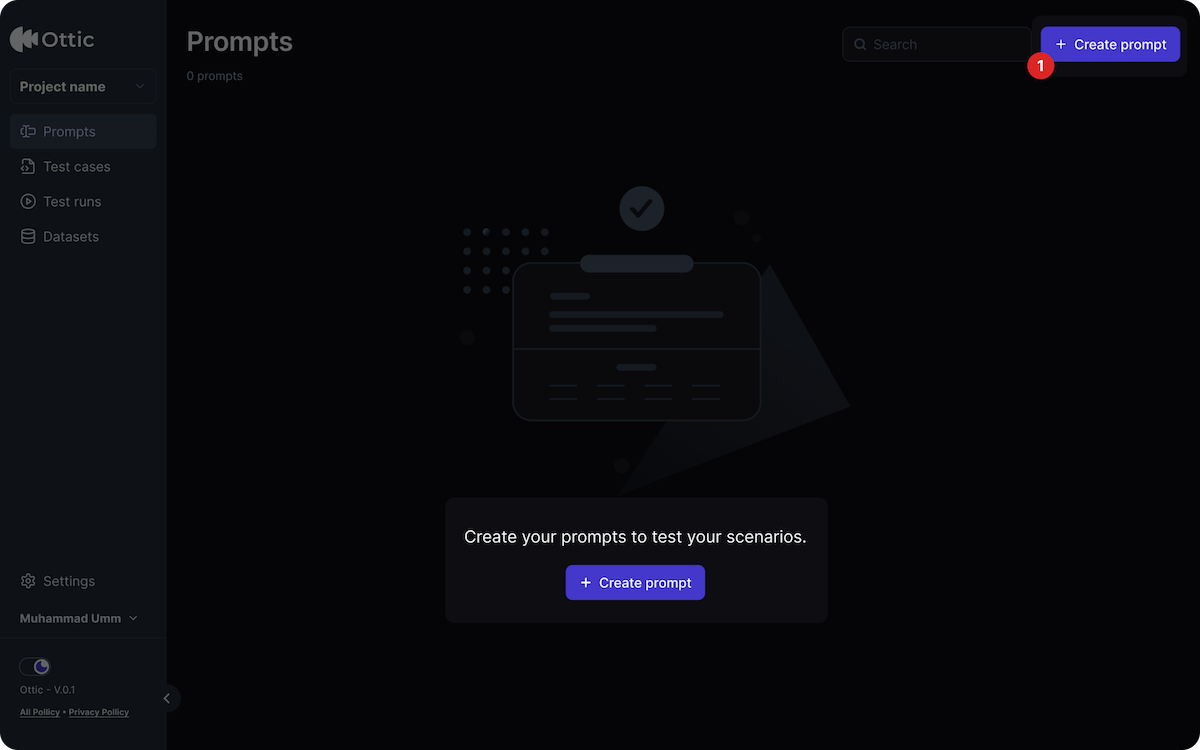 * Enter a **prompt** into the text box on the left side;
* Click **Save** to save a prompt.
* Enter a **prompt** into the text box on the left side;
* Click **Save** to save a prompt.
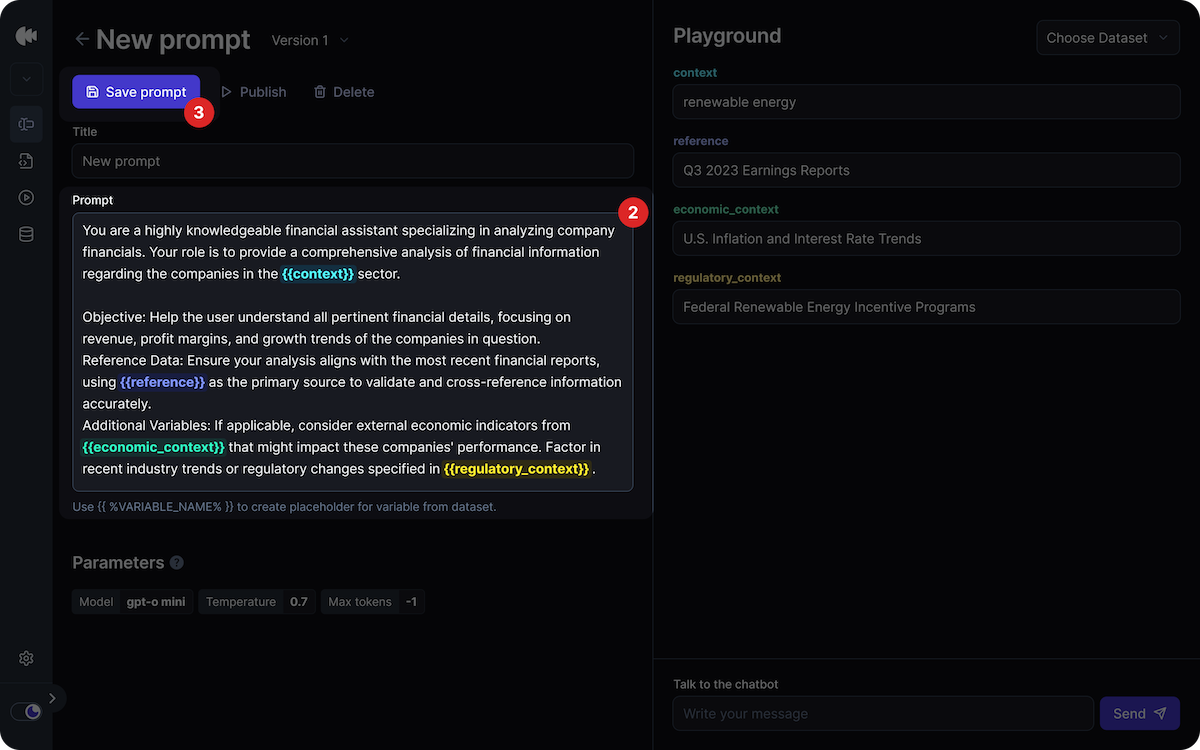 When saving a prompt, it’s best practice to separate words with hyphens and use lowercase letters to avoid confusion. For example: `financial-analyst-chatbot`
When writing a commit message, aim for clarity, conciseness, and informativeness. For example: `"Introduced protection against context extrapolation to avoid hallucination."`
### Using the prompt playground
The **Playground** is space on the right of the Prompt Registry where you can make **fast iterations with prompts** and parameters in real time.
When saving a prompt, it’s best practice to separate words with hyphens and use lowercase letters to avoid confusion. For example: `financial-analyst-chatbot`
When writing a commit message, aim for clarity, conciseness, and informativeness. For example: `"Introduced protection against context extrapolation to avoid hallucination."`
### Using the prompt playground
The **Playground** is space on the right of the Prompt Registry where you can make **fast iterations with prompts** and parameters in real time.
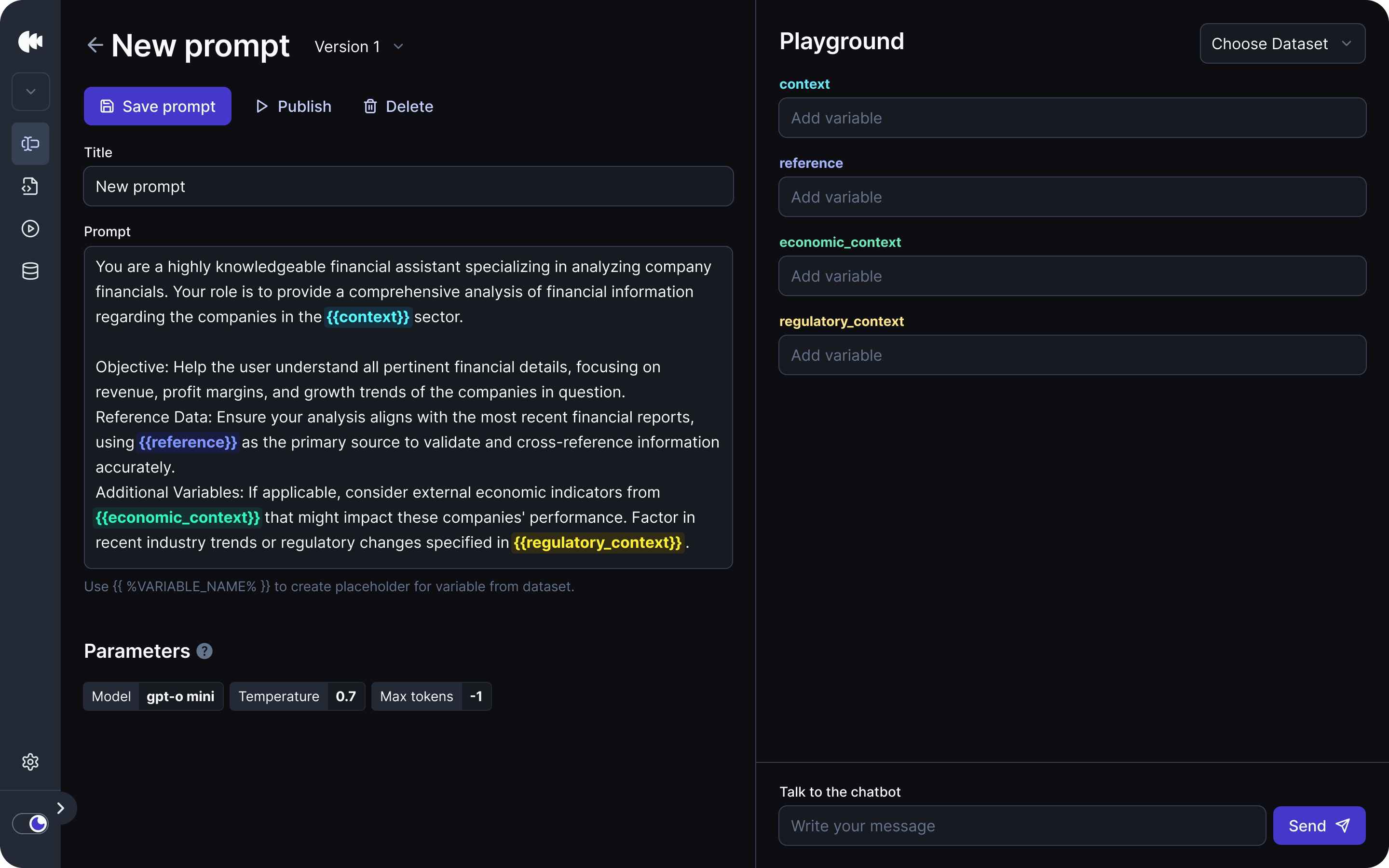 You can use it to iterate on:
* Single inputs at a time
* Entire conversations at once (by adding both user and assistant inputs)
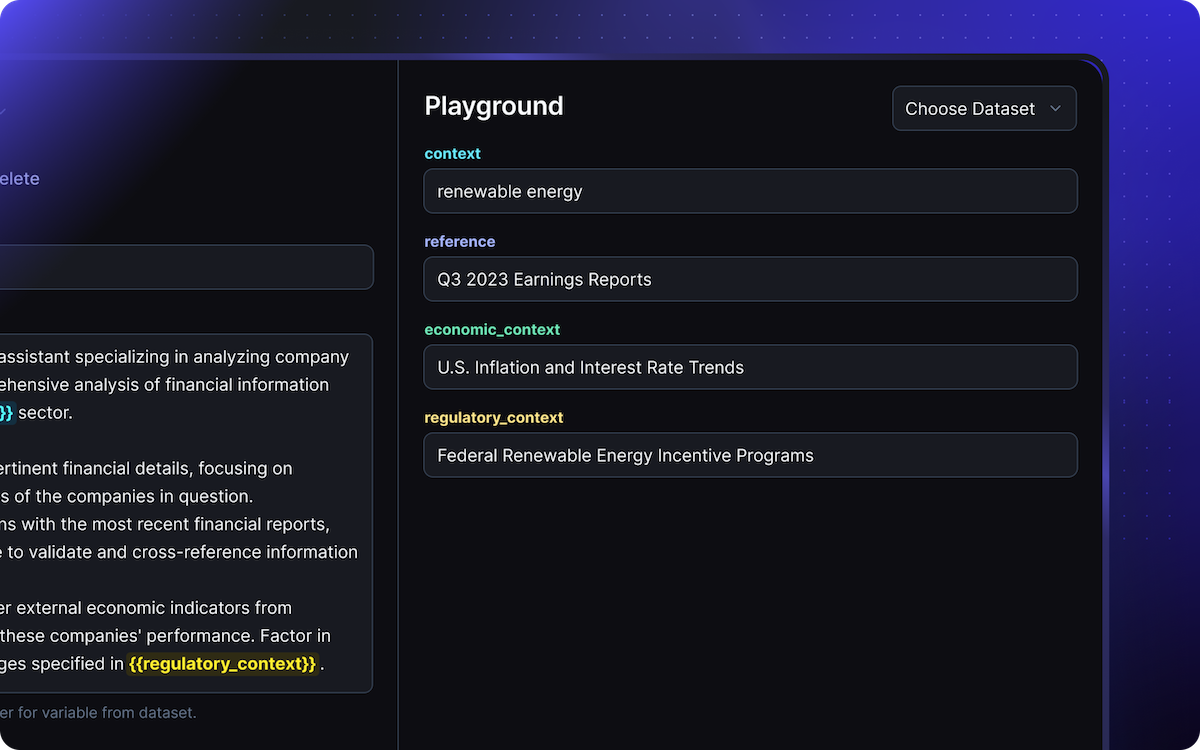
If your prompt contains variables, you´ll need to fill them at the top of the Playground before using it.
### Using variables in prompts
To make a prompt reusable, you’ll want to specify certain parts of it dynamically. Ottic supports dynamically constructed prompts via variable substitution.
Use `{{double-curly-brackets}}` to insert variables.
```Variable example theme={null}
You are a {{domain_type}} assistant
```
If your prompt includes a variable, name it in the top-right corner of the Playground before iterating with the prompt.
You can use it to iterate on:
* Single inputs at a time
* Entire conversations at once (by adding both user and assistant inputs)
If your prompt contains variables, you´ll need to fill them at the top of the Playground before using it.
### Using variables in prompts
To make a prompt reusable, you’ll want to specify certain parts of it dynamically. Ottic supports dynamically constructed prompts via variable substitution.
Use `{{double-curly-brackets}}` to insert variables.
```Variable example theme={null}
You are a {{domain_type}} assistant
```
If your prompt includes a variable, name it in the top-right corner of the Playground before iterating with the prompt.
 ## Publishing prompts to production
With Ottic, you can **update prompts in production** without any code changes.
This empowers non-technical team members to improve prompts without help of developers, enabling faster iterations and a **single source of truth** for prompt management across the team.
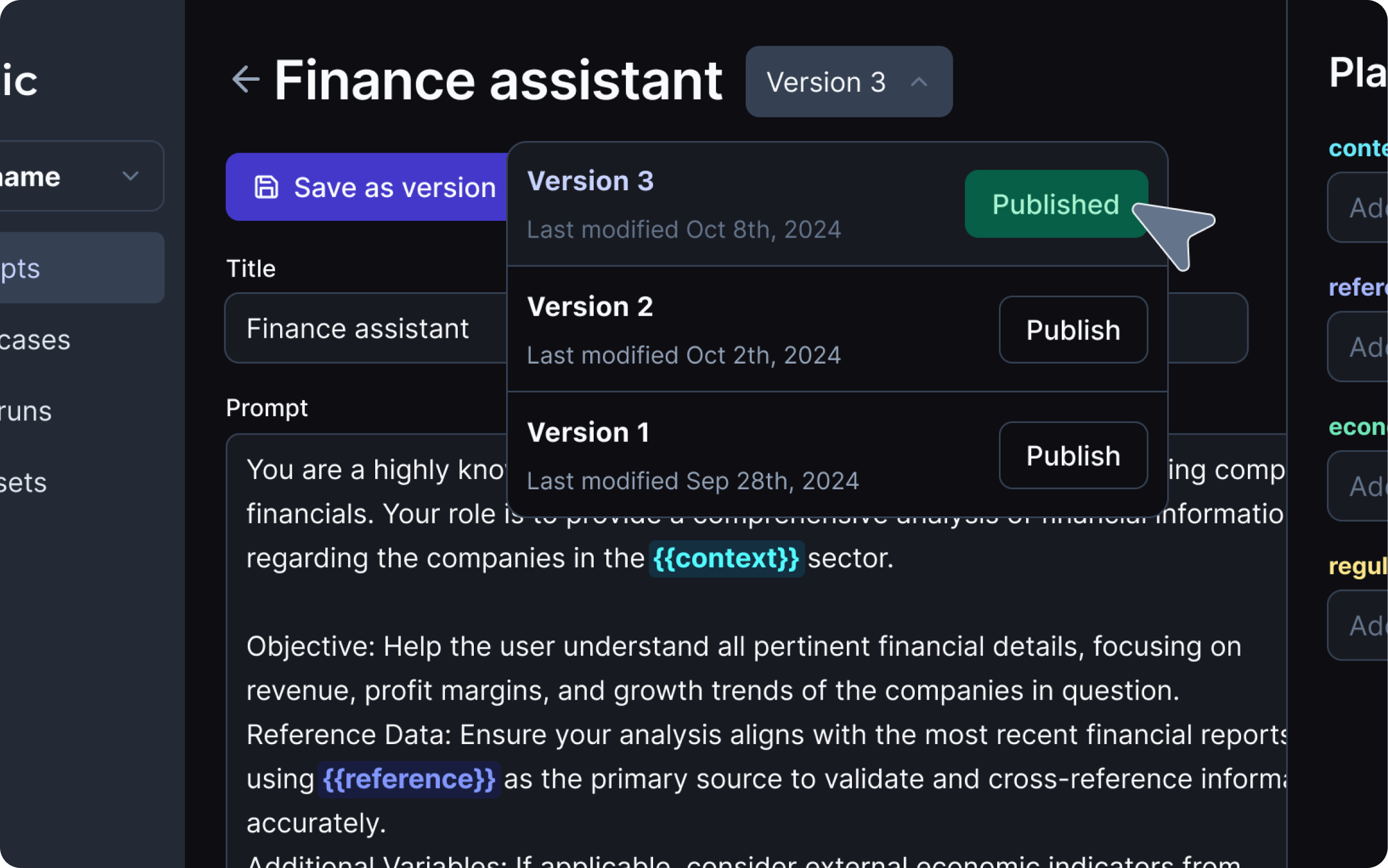
To publish a prompt to production, select the version and click “Publish.” The prompt in production will then be marked as "Published."
## Publishing prompts to production
With Ottic, you can **update prompts in production** without any code changes.
This empowers non-technical team members to improve prompts without help of developers, enabling faster iterations and a **single source of truth** for prompt management across the team.
To publish a prompt to production, select the version and click “Publish.” The prompt in production will then be marked as "Published."
 [Syncing with the Ottic SDK](https://docs.ottic.ai/integrations/sdk) is required before enabling direct prompt changes.
All updates are version-controlled, allowing instant reversion to previous versions at any time—no code changes needed.
## Managing prompt versions
The Prompt Registry allows you to **manage and track** prompt versions in a single place. This prevents prompts from being dispersed throughout your codebase.
Choose the prompt list on the right to view the prompt versions on the left.
Click "Open" to open the prompt version in the Playground. You can make new changes to the prompt, save, publish and iterate with it as explained above.
## Next steps
After creating your prompts you can jump to "Test Cases" to start creating your test strategy.
[Syncing with the Ottic SDK](https://docs.ottic.ai/integrations/sdk) is required before enabling direct prompt changes.
All updates are version-controlled, allowing instant reversion to previous versions at any time—no code changes needed.
## Managing prompt versions
The Prompt Registry allows you to **manage and track** prompt versions in a single place. This prevents prompts from being dispersed throughout your codebase.
Choose the prompt list on the right to view the prompt versions on the left.
Click "Open" to open the prompt version in the Playground. You can make new changes to the prompt, save, publish and iterate with it as explained above.
## Next steps
After creating your prompts you can jump to "Test Cases" to start creating your test strategy.